Thkee Sketch is a visual drawing tool designed to help you create diagrams, illustrations, and quick visual explanations during live sessions. It is ideal for simplifying complex ideas and supporting your teaching with clear visuals.
This guide explains how to use Thkee Sketch and how to make the most of it during your sessions.
What is Thkee Sketch?
Thkee Sketch is a visual tool that enables instructors to:
- Draw diagrams and visual representations in real time
- Simplify abstract or complex concepts
- Support explanations of systems and architectures with quick sketches
- Engage learners through interactive drawing
Accessing Thkee Sketch
- Start your live session
- Open the Tools panel
- Select Thkee Sketch
The drawing interface will open and be shared with participants
1. The Drawing Toolbar (Top Center)
The top bar is your primary toolbox. Each tool is numbered.
- Shapes (2, 3, 4): Create Rectangles, Diamonds, or Ellipses. These are the building blocks of most diagrams.
- Connectors (5, 6): Use the Arrow tool to show flow or the Line tool for simple connections and borders.
- Free-draw (7): The Pencil tool allows for organic, hand-drawn shapes and quick annotations.
- Text (8): Click anywhere on the canvas to type. You can adjust the font style (Hand-drawn, Normal, or Code) from the sidebar.
- Insert Image (9): Upload external images or icons to enhance your visual explanations.
2. Customizing Your Style (Left Sidebar)
When you select a tool or an object, the left sidebar provides advanced customization options:
- Stroke & Background:
Choose colors from the palette or enter exact Hex values (e.g., #000000) for precise control. - Fill Styles:
Select between Hachure (sketch style), Cross-hatch, or Solid fills to give shapes more depth. - Stroke Properties:
Adjust:- Width (thin to thick)
- Style (solid, dashed, dotted)
- Edges (sharp or rounded corners)
- Arrowheads:
Customize how arrows start and end when using connectors.
3. Canvas Controls (Bottom Left)
These controls help you navigate and refine your work:
- Zoom: Use the + / - buttons to zoom in and out for better precision.
- Undo / Redo: Quickly revert or restore actions using the curved arrows.
- Eraser: Remove specific elements from the canvas without affecting the rest of your work.
4. File Management & Collaboration (Top Left)
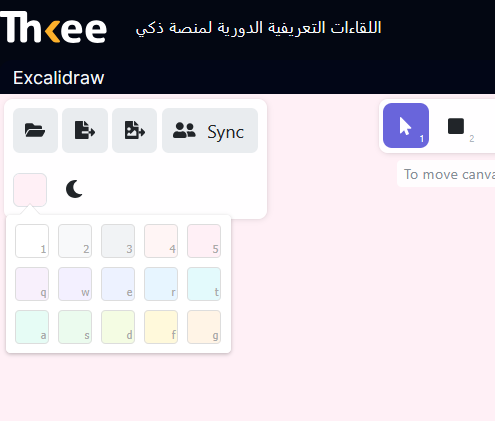
- Folder Icon: Open existing .excalidraw files.
- Save / Export: Save your work locally or export it as PNG or SVG for reuse in presentations.
- Sync: This is the powerhouse feature. Clicking Sync allows you to start a live collaboration session where others can draw with you in real-time. and edit the canvas.
- Color Icon (Canvas Background): Change the background color of the canvas to improve visibility and adapt the workspace to your presentation style.
- Theme Toggle: Switch between Light Mode and Dark Mode using the Moon/Sun icon.
How to Use Thkee Sketch Effectively
1. Build Structured Diagrams
Use shapes and connectors to create clean, easy-to-follow visuals.
2. Explain Processes
Draw flows step by step to show how systems work.
3. Combine Text and Visuals
Label your diagrams to make them clearer and more meaningful.
4. Use Images When Needed
Support explanations with visuals instead of relying only on drawing.
Best Practices
- Keep diagrams simple and readable
- Use consistent colors and styles
- Avoid overcrowding the canvas
- Use connectors to show relationships clearly
- Zoom in when working on detailed parts
Using Thkee Sketch effectively allows you to deliver clear, structured, and visually engaging explanations, helping learners better understand complex topics with ease.